Screenshot and Image Markup
Best tools for marking up mechanical screenshots and images in 2026
Mechanical screenshots need more than arrows. The right tool depends on whether the image is a quick note, a documentation asset, or part of an engineering review package.
Short answer
PDF Engineer is the best tool when the image needs mechanical redlines
For a generic screenshot, Snagit, ShareX, CleanShot X, Markup Hero, Greenshot, Snipping Tool, Paint, and Preview can all be useful. For a mechanical screenshot or image that needs GD&T, BOM balloons, flag notes, leaders, tolerance comments, supplier feedback, inspection context, or a clean PDF handoff, PDF Engineer is the better fit.
The practical workflow is simple: capture the image with the fastest tool on your machine, then use PDF Engineer when the markup needs to look like engineering feedback instead of a casual screenshot comment.
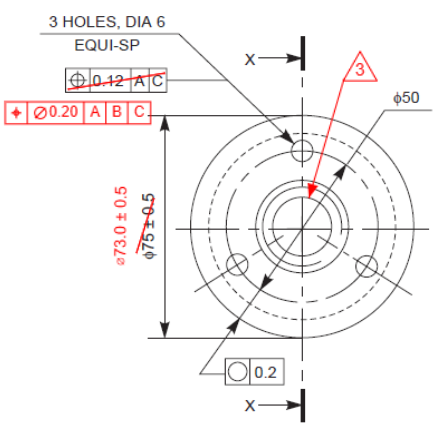
Best overall for mechanical screenshots
PDF Engineer
The best fit when a CAD screenshot, inspection photo, clipped drawing detail, or shop-floor image needs mechanical redlines, clean callouts, and a shareable engineering review package.
Best dedicated screenshot editor
Snagit
The strongest general-purpose paid capture and annotation tool when you make a lot of technical documentation, step guides, and polished screenshot callouts.
Best free Windows power tool
ShareX
The best free option for Windows users who want fast capture, editable annotations, redaction, upload automation, hotkeys, and repeatable screenshot workflows.
Best lightweight sharing workflow
Markup Hero
The better choice when the main job is sharing annotated images, PDFs, screenshots, and quick browser-based feedback links with other reviewers.
What matters
Mechanical image markup is different from ordinary screenshot markup
A mechanical screenshot may represent a real design decision. The reviewer might be pointing to a tolerance stack, a missed radius, an impossible tool path, a hole pattern, a shop-floor issue, a drawing-note conflict, or a supplier question. The tool has to preserve context and make the requested action obvious.
Mechanical callouts
The tool should handle arrows, leaders, numbered notes, dimension comments, symbols, and labels without forcing every reviewer to rebuild the same visual language by hand.
Image-first speed
Mechanical feedback often starts as a CAD screenshot, a phone photo from the shop, a clipped supplier image, or a quick screen capture from a review meeting.
Redaction and cleanup
A useful screenshot tool should crop distractions, hide sensitive details, and keep the final image readable when it is pasted into email, Teams, Slack, a ticket, or a PDF packet.
Engineering handoff
The final markup should travel cleanly to design, manufacturing, quality, suppliers, document control, or a formal drawing review record.
Ranked tools
The best tools for marking up mechanical screenshots and images
The ranking favors mechanical review clarity first, then capture speed, redaction, sharing, platform fit, and handoff quality.
#1 - Mechanical screenshots, CAD views, inspection photos, and drawing-review images
PDF Engineer
PDF Engineer is the best tool when screenshot markup is part of a mechanical engineering review instead of a generic design comment.
Use PDF Engineer when the image is not just a picture. It might be a CAD view, a clipped drawing detail, an inspection photo, a supplier screenshot, or a shop-floor image that needs a precise technical response. PDF Engineer lets teams paste an image or screenshot, mark it up with the same mechanical tools they use on PDFs, and export a clean review package.
Strengths
- Mechanical-native redline tools for GD&T, BOM balloons, flag notes, leaders, symbols, and drawing comments
- Useful for CAD screenshots, inspection photos, supplier clarification images, and manufacturing feedback
- Clean output that can move through existing PDF review, PLM, supplier, or document-control workflows
- Focused workflow for engineers who need technical clarity more than decorative screenshot editing
Watch out for
PDF Engineer is strongest once the screenshot or image is already captured. Pair it with a dedicated screen capture utility if you need scrolling capture, video capture, or automated uploads.
#2 - Polished technical screenshots and step-by-step documentation
Snagit
Snagit is the best dedicated screenshot annotation app for engineers who create polished how-to images, support documentation, and repeatable visual instructions.
Snagit is a mature screen capture and editor workflow. It is a strong fit when you need to capture a screen, add arrows, callouts, steps, text, redaction, and cleanup, then reuse those images in documentation or support workflows.
Strengths
- Strong capture and editor flow for screenshots, step guides, and visual documentation
- Useful tools for callouts, arrows, text, simplified screenshots, text recognition, and sensitive-data redaction
- Good fit for product support, internal training, technical writing, and engineering communication
- Available for professional teams that need a maintained commercial screenshot tool
Watch out for
Snagit is a general screenshot tool, not a mechanical drawing redline tool. For GD&T, BOM balloons, flag notes, and engineering drawing language, use PDF Engineer.
#3 - Free Windows screenshot annotation and automation
ShareX
ShareX is the best free Windows tool for engineers who want a powerful capture utility with annotation, redaction, hotkeys, and automated after-capture actions.
ShareX is especially useful for Windows-heavy engineering teams that need repeatable screenshot capture and fast annotation without buying a dedicated commercial tool. Its image editor covers arrows, shapes, text, step markers, blur, pixelate, highlight, magnify, crop, cutout, copy, save, and upload workflows.
Strengths
- Free and open source
- Broad capture options, hotkeys, after-capture tasks, image editing, OCR, and upload automation
- Good for bug reports, CAD workflow notes, support screenshots, and quick engineering communication
- Strong redaction and cleanup tools for hiding sensitive information before sharing
Watch out for
ShareX is Windows-focused and powerful enough to feel busy. It is best for power users who are willing to configure the workflow.
#4 - Shared image, screenshot, and PDF feedback links
Markup Hero
Markup Hero is the best lightweight option when the markup needs to become a shareable review link more than a formal engineering redline package.
Markup Hero works well when a reviewer wants to capture or upload an image, annotate it in a browser, share a link, and let others add feedback. It is practical for fast asynchronous comments on screenshots, images, PDFs, websites, and multi-page markups.
Strengths
- Upload images and PDFs, capture screenshots, add text, arrows, highlights, icons, blur, and crop
- Share links quickly with teammates, vendors, or support contacts
- Browser-based annotation from multiple devices
- Useful when the review is collaborative but lightweight
Watch out for
Cloud sharing can be a poor fit for controlled drawings, ITAR/EAR-sensitive work, unreleased products, or customer files with strict data-handling requirements.
#5 - Mac screenshot capture and quick annotation
CleanShot X
CleanShot X is the best Mac-first screenshot tool when engineers need fast capture, annotation, copy, drag-and-drop, and sharing on macOS.
CleanShot X is a strong replacement for the built-in Mac screenshot workflow. It is useful for engineers, product teams, and technical writers who live on macOS and need screenshots that move quickly into notes, tickets, messages, or documentation.
Strengths
- Fast screenshot capture with a polished overlay workflow
- Annotation tools for highlighting important parts of a capture
- Convenient save, copy, drag-and-drop, recording, and GIF workflows
- Good fit for Mac users who mark up screenshots all day
Watch out for
CleanShot X is macOS-only and is not focused on mechanical drawing symbols or formal engineering review packages.
#6 - Putting images into broader PDF drawing workflows
Bluebeam Revu
Bluebeam Revu is a good choice when image markup belongs inside a broader PDF markup, measurement, or construction-style drawing workflow.
Bluebeam can place image markups into PDFs from files, cameras, or scanners, and its Snapshot tool can reuse PDF content as markups. It is strongest when the team already works in Bluebeam for PDF markup, measurement, and tool sets.
Strengths
- Strong PDF markup and measurement environment
- Can place images as markups on PDFs
- Snapshot and Tool Chest workflows can help reuse visual details
- Useful when the screenshot or image is one part of a larger PDF review process
Watch out for
Bluebeam is broad and often AEC-oriented. Mechanical teams that mostly need GD&T, BOM balloons, flag notes, leaders, and fast image redlines may prefer PDF Engineer.
#7 - Simple free Windows screenshot annotation
Greenshot
Greenshot is the best simple free Windows screenshot annotator when you only need capture, arrows, highlights, obfuscation, and quick export.
Greenshot is a lightweight option for basic screenshot markup. It is useful on Windows workstations where a reviewer needs to grab a screen region, add a few notes, hide sensitive content, and send the result without configuring a larger tool.
Strengths
- Free and open source on Windows
- Easy image editor for annotations, shapes, highlighting, and obfuscation
- Can edit screenshots as well as images opened from file or clipboard
- Simple enough for occasional screenshot markup
Watch out for
Greenshot is not the best choice for mechanical-specific symbols, multi-page review packets, or advanced screenshot automation.
#8 - No-install Windows markup
Windows Snipping Tool and Paint
Windows Snipping Tool and Paint are the best no-install options for quick local markup when a reviewer only needs a basic screenshot, pen mark, shape, text label, or crop.
Snipping Tool is already available on Windows 10 and Windows 11, and Paint handles basic image editing. Together they cover many one-off tasks: capture a region, draw a note, add a shape, crop, copy, save, or paste into an email or chat.
Strengths
- Built into Windows
- Good for quick local captures, pen marks, highlighter marks, shapes, emojis, text, crop, and save/share workflows
- Paint adds basic image editing, shapes, text, layers, and common export formats
- Useful on locked-down company machines where installing tools is hard
Watch out for
Built-in tools are fine for quick notes, but they become slow when an engineering team needs repeatable mechanical symbols, numbered issues, or consistent review packets.
#9 - No-install Mac image markup
Apple Preview
Apple Preview is the best built-in Mac option for occasional image markup with shapes, text, arrows, highlights, sketching, crop, and quick feedback.
Preview is useful when a Mac user receives an inspection photo, screenshot, or clipped drawing image and needs to add a simple note without installing a separate tool. It is not the fastest daily screenshot tool, but it is reliable for occasional local markups.
Strengths
- Built into macOS
- Works with PDFs and images
- Markup toolbar supports shapes, text, sketching, highlights, signatures, selection, crop, and related tools
- Good for quick, local, no-account annotation
Watch out for
Apple notes that image annotations cannot be edited, moved, or deleted after saving the image. Convert to PDF first if you need editable annotations later.
Workflow match
Which tool should you use for each markup job?
The right answer changes with the job. A shop-floor image with a tolerance issue should not use the same workflow as a polished tutorial screenshot or a quick browser capture.
| Markup job | Best tool | Why |
|---|---|---|
| Mark up a CAD screenshot with GD&T or a dimension-change note | PDF Engineer | Mechanical redlines are the point: leaders, symbols, flags, BOM references, and clean engineering output. |
| Create polished technical documentation images | Snagit | Strong capture, callout, step-guide, cleanup, redaction, and documentation workflows. |
| Capture and annotate many Windows screenshots quickly | ShareX | Hotkeys, after-capture actions, editable annotations, redaction, upload tasks, and automation. |
| Share an annotated image link for lightweight review | Markup Hero | Browser-based annotation and share links work well for quick async comments. |
| Use a Mac-native daily screenshot tool | CleanShot X | Fast macOS capture, overlay, annotation, copy, drag-and-drop, recording, and GIF workflows. |
| Add photos or screenshots to a broad PDF markup workflow | Bluebeam Revu | Useful when the team already uses Bluebeam for PDF markup, measurement, and tool sets. |
| Make a simple no-install markup on Windows | Snipping Tool or Paint | Built-in capture, pen, highlighter, shapes, crop, text, and common image exports are enough for one-off notes. |
| Make a simple no-install markup on Mac | Apple Preview | Built-in Markup tools cover occasional image and PDF annotations without another app. |
PDF Engineer workflow
Use PDF Engineer when the screenshot needs to become engineering feedback
Mechanical teams often start with whatever evidence is available: a screenshot from CAD, a cropped supplier image, a phone photo of a feature, or a clipped drawing detail. The important part is not the file type. It is whether the next person can understand the requested change without another meeting.
- Choose PDF Engineer when the screenshot is really engineering evidence: a CAD view, inspection issue, supplier clarification, shop-floor photo, drawing detail, tolerance question, or ECO/ECR review note.
- Choose Snagit, ShareX, CleanShot X, or Greenshot when the primary job is capture speed, screen recording, browser screenshots, redaction, or visual documentation.
- Choose Markup Hero when the workflow depends on lightweight share links and collaborative browser comments.
- Choose Bluebeam when images need to live inside an existing Bluebeam PDF markup and measurement workflow.
- Choose built-in tools when the markup is occasional, local, and simple enough that installing software would slow you down.
Bottom line
Capture with speed, mark up with the right level of engineering context
Best for mechanical review screenshots and images: PDF Engineer
Best pure screenshot annotation tool: Snagit
Best free Windows screenshot workflow: ShareX
Best quick built-in choices: Windows Snipping Tool, Paint, and Apple Preview
If the markup is only a screenshot note, use the fastest capture tool. If the markup has to communicate a mechanical design issue, inspection finding, supplier question, or release-package change, use PDF Engineer.
FAQ
Mechanical screenshot markup questions
What is the best tool for marking up mechanical screenshots?
PDF Engineer is the best tool when the screenshot needs mechanical review language such as GD&T, BOM balloons, flag notes, leaders, drawing comments, supplier feedback, or inspection notes. Snagit, ShareX, CleanShot X, and Greenshot are better when the main job is screen capture and generic screenshot annotation.
Can PDF Engineer mark up screenshots and images?
Yes. PDF Engineer can be used with pasted images and screenshots, so teams can mark up CAD views, clipped drawing details, inspection photos, and shop-floor images with the same review tools they use for mechanical PDF redlines.
Should I use a screenshot tool or an engineering redline tool?
Use a screenshot tool when you mainly need to capture, crop, redact, and share an image quickly. Use an engineering redline tool when the image needs technical callouts, consistent review markings, and a clean handoff to design, quality, manufacturing, suppliers, or document control.
What is the best free tool for annotating engineering screenshots?
ShareX is the strongest free Windows option for power users. Greenshot is simpler for occasional Windows markup. Apple Preview and Windows Snipping Tool are useful built-in options for no-install local work.
Are cloud screenshot annotation tools safe for mechanical design reviews?
They can be safe for non-sensitive work, but engineering teams should check company rules before uploading unreleased designs, supplier files, controlled technical data, customer drawings, ITAR/EAR material, or confidential product images to any cloud tool.
Sources
Official product references
Product feature claims in this comparison are based on official product pages and support documentation.
- PDF Engineer mechanical redline software
PDF Engineer describes a mechanical drawing review workflow with native symbols, GD&T frames, BOM balloons, flag notes, leaders, and clean exported PDFs.
- TechSmith Snagit features
TechSmith positions Snagit around screen capture, editing, step guides, scrolling capture, simplification, smart move, text recognition, and redaction features.
- ShareX image editor
ShareX documents its image editor for screenshot annotation, callouts, text, redaction, crop, magnify, highlight, copy, save, upload, and after-capture workflows.
- Markup Hero features
Markup Hero documents screenshot capture, image and PDF upload, browser annotation, blur, crop, multi-page markups, sharing, export, and collaboration features.
- CleanShot X for Mac
CleanShot X describes a Mac capture workflow with quick access, annotation, saving, copying, dragging, screen recording, GIFs, and a large feature set.
- Bluebeam image markups
Bluebeam documents placing image markups on PDFs from local files, cameras, scanners, and related PDF Snapshot workflows.
- Greenshot help
Greenshot documents screenshot annotation, shapes, highlighting, obfuscation, and opening images from file or clipboard in its editor.
- Microsoft Snipping Tool
Microsoft documents Snipping Tool capture modes plus annotation with pen, highlighter, shapes, emojis, eraser, crop, text actions, save, and share workflows.
- Microsoft Paint
Microsoft describes Paint as a built-in Windows image editor with crop, rotate, drawing, shapes, text, layers, common image formats, and basic editing tools.
- Apple Preview image annotations
Apple documents Preview markup tools for image files, including selection, sketch, draw, shapes, text, crop, highlight, zoom, and the save limitation for image annotations.