Engineering teams & IT
7 Things Engineering Teams Should Check Before Adopting a New PDF Editor
Choosing PDF software for an engineering team involves more than comparing annotation features. Here’s what engineering managers, R&D teams, and IT decision-makers should evaluate before committing to a new tool.
Published · 10 min read
PDF editors are among the most frequently used applications in engineering organizations. Mechanical engineers use them to review manufacturing drawings. Quality engineers use them to document inspection requirements. Manufacturing engineers use them to communicate changes to suppliers. Design and R&D teams use them to review and approve drawing revisions.
Despite their importance, PDF editors are often treated as generic office software. But engineering drawings aren’t ordinary documents.
A PDF containing hundreds of dimensions, geometric tolerances, manufacturing notes, and multiple drawing views presents different challenges from a text-based document. Adopting a new engineering PDF editor also raises technical, security, and operational questions beyond whether the software can draw arrows and highlight text.
The question for a team is straightforward: can we adopt this software confidently, without creating new problems? Here are seven things worth evaluating before making a decision.
1. Compatibility With Existing Engineering Drawings
The first requirement is simple: the software must reliably open, display, annotate, and save your existing PDF files.
Engineering drawings can contain complex vector geometry, embedded fonts, custom symbols, large page sizes, and thousands of individual graphical elements. A PDF editor that works perfectly with an office document may struggle with a large manufacturing drawing exported from CAD software.
Test it with representative drawings from your actual engineering workflow. Consider:
- Can it open PDFs exported from your CAD software?
- Are line weights, dimensions, fonts, and symbols displayed correctly?
- Does it handle large drawing sheets and multi-page packages?
- Can annotations be saved without altering the original drawing geometry?
- Do the resulting PDFs display correctly in other PDF viewers?
Pay particular attention to what happens after saving. A drawing that looks correct in one application should still display correctly when opened by a supplier, customer, or colleague using different software. Interoperability is essential when PDFs serve as a common communication format between organizations.
2. Security and Document Handling
Engineering drawings frequently contain sensitive intellectual property, including unreleased product designs, proprietary manufacturing processes, supplier information, or controlled technical data. Before adopting a new PDF editor, understand how it handles those files.
- Are documents processed locally or uploaded to external servers?
- Does the software require cloud storage?
- Can it operate without an internet connection?
- What information is transmitted to the software vendor?
- Are documents or annotations collected for analytics or AI processing?
- Does the vendor provide security documentation?
Cloud-based PDF tools can offer valuable collaboration capabilities, but they introduce additional data-handling considerations. For some engineering teams, particularly those working with proprietary or regulated information, local document processing may simplify the security review.
However, local processing alone doesn’t guarantee security or compliance. IT teams should still evaluate software updates, installation permissions, vulnerability management, data storage, and applicable regulatory requirements.
The goal is to understand exactly where engineering data goes and whether that aligns with your organization’s requirements.
3. Tools Designed for Engineering Workflows
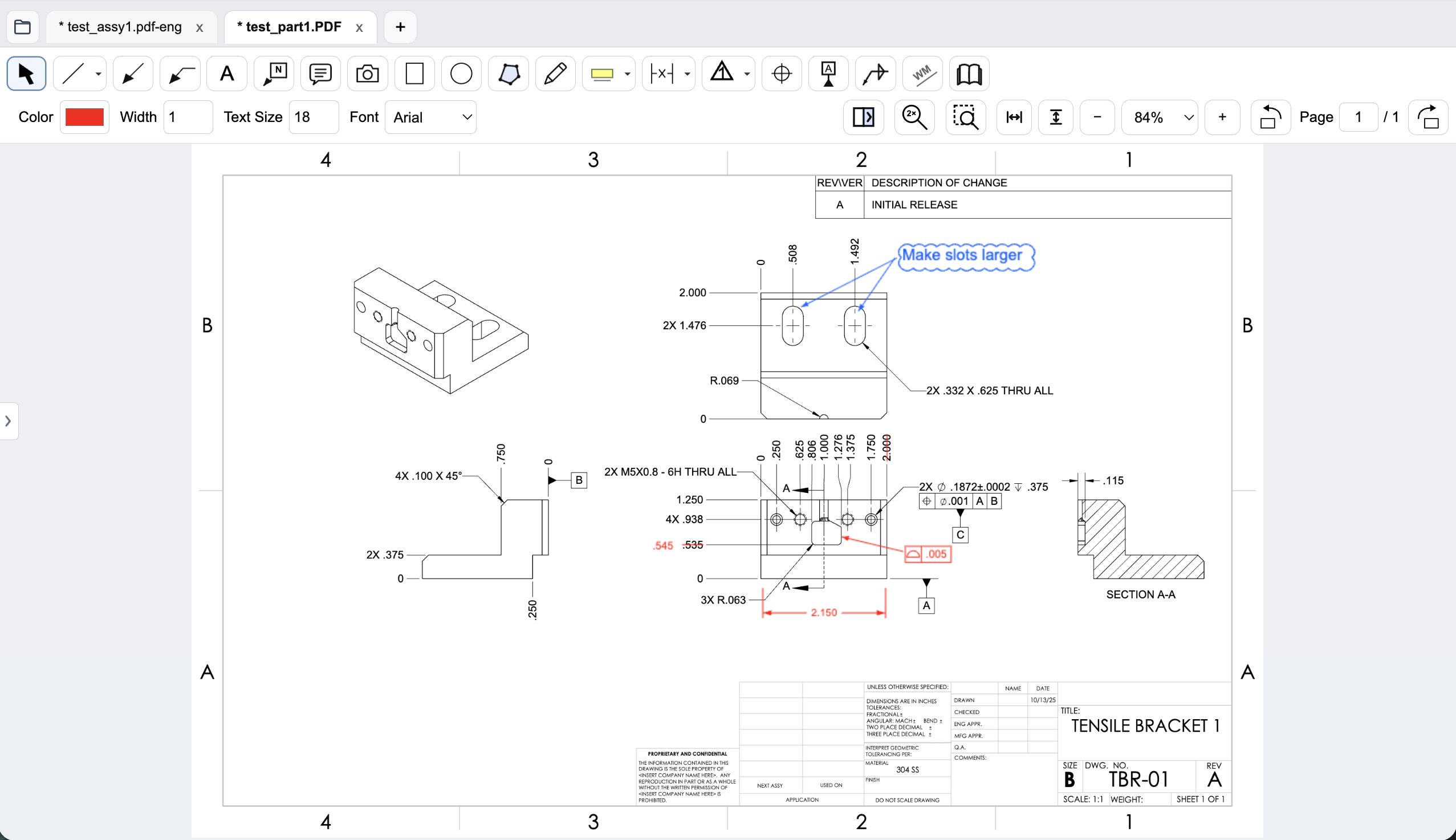
Not all PDF annotation tools are equally useful for engineering drawings. A general-purpose editor might provide text boxes, arrows, lines, and shapes. Those tools are useful, but mechanical drawing reviews often require more specialized annotations:
- GD&T feature control frames
- Dimension and tolerance corrections
- BOM balloons
- Flag notes
- Weld symbols
- Centerlines and engineering callouts
- Revision-related markups
Without dedicated tools, engineers may need to construct these annotations manually using combinations of text boxes, lines, and symbols. That adds time and can introduce inconsistencies.
When evaluating PDF markup software for engineers, identify the five or ten annotation tasks your team performs most frequently. Then test how efficiently each application handles those tasks.
A PDF editor with fewer features but better support for your actual workflow may be more productive than a much larger application.
4. Performance With Real Engineering Documents
Software performance is often overlooked during purchasing decisions. But engineering teams may open, navigate, and annotate dozens of drawings in a typical workday. Small delays add up.
Consider an engineer who opens 20 drawings per day. If a PDF editor adds 15 seconds of unnecessary waiting to each drawing, that’s five minutes per day. Across 20 engineers working 220 days per year, that represents approximately 367 hours of cumulative waiting annually.
This is an illustrative calculation, not a measured comparison between products. It also excludes delays from switching tools, navigating pages, or editing annotations.
When testing an engineering PDF editor, measure:
- Application startup time
- PDF opening time
- Zooming and panning responsiveness
- Performance with complex vector drawings
- Tool switching speed
- Annotation creation and editing time
- Responsiveness with multi-page drawing packages
Use actual drawings rather than small sample PDFs. Compare applications on the same workstation with the same files and tasks. A responsive interface is a productivity feature.
5. Licensing, Pricing, and Long-Term Ownership
Some applications offer perpetual licenses, while others use monthly or annual subscriptions. Neither model is inherently better for every organization. What matters is understanding the total cost and the rights associated with the license.
Before purchasing, ask:
- Is pricing per user, per device, or based on concurrent usage?
- Are licenses assigned to individuals or managed centrally?
- Can licenses be reassigned when employees change roles?
- What happens when a subscription expires?
- Are software updates included?
- Can previously created PDFs still be opened in other applications?
- Are volume discounts available?
- Does the vendor support purchase orders and invoicing?
Engineering managers should also consider the administrative effort required to manage licenses. Individual subscriptions may be straightforward for a small team. For larger organizations, centralized purchasing, user management, and predictable renewal dates can become important.
Evaluate licensing based on expected usage and administrative requirements, not just the advertised price per seat.
If you’re reevaluating an existing tool, read Moving Away From Bluebeam? What Mechanical Engineers Should Consider for a closer look at individual drawing-review workflows.
6. Deployment, Updates, and IT Administration
A PDF editor may work perfectly for one engineer but still present challenges when deployed across an organization. IT teams need to understand how the application is installed, maintained, and supported.
- Which operating systems are supported?
- Does installation require administrator privileges?
- Can the application be distributed using existing IT deployment tools?
- Are software updates automatic or centrally controlled?
- How are security vulnerabilities communicated and addressed?
- Can the application be used in restricted network environments?
- What support options are available?
- Can the vendor provide documentation for security and procurement reviews?
For organizations with controlled engineering environments, these details can determine whether software is practical to deploy. Smaller vendors may offer highly specialized functionality, but buyers should verify that support and deployment capabilities match their organizational needs.
A successful evaluation should include both engineering users and IT stakeholders.
7. Compatibility With Your Existing Engineering Process
The final consideration is whether the PDF editor fits into your current engineering workflow. Many organizations already have established systems for managing design changes and approvals:
- Product lifecycle management (PLM) systems
- Engineering change orders (ECOs)
- CAD and product data management (PDM) platforms
- Document management systems
- Quality management systems
- Supplier review and approval processes
In many cases, the PDF editor’s role is to help engineers review drawings and communicate changes clearly. A mechanical engineer might retrieve a drawing from a PLM system, add redlines, save the annotated PDF, and return it to the existing change-control process.
A PDF editor that works well with standard files and existing document storage may fit naturally into this workflow. Test that file handoff; it doesn’t necessarily require a direct integration with your PLM or PDM system.
A tool that requires adopting a separate cloud workspace or document management system may introduce additional complexity. Sometimes the best engineering software simply makes one important part of the process faster and easier.
A Practical Evaluation Checklist
Before rolling out a new PDF editor, run a short pilot with a few representative users.
| Evaluation area | What to verify |
|---|---|
| Drawing compatibility | CAD-exported PDFs display and save correctly |
| Security | Document processing and data transmission meet company requirements |
| Engineering tools | Common mechanical annotations are easy to create |
| Performance | Large and complex drawings remain responsive |
| Licensing | Pricing and license administration fit the team |
| IT deployment | Installation, updates, and support meet IT requirements |
| Workflow integration | Software fits existing review and approval processes |
A pilot involving mechanical engineering, R&D, manufacturing, quality, and IT can uncover issues that a feature comparison alone might miss. Have users complete real drawing review tasks, then collect feedback on speed, usability, reliability, and missing capabilities.
Agree on acceptance criteria before the pilot. Record a pass, fail, or follow-up for each area, along with the evidence and the person responsible for resolving open questions before rollout.
PDF Engineer: Built for Mechanical Drawing Reviews
PDF Engineer was created around a specific idea: mechanical engineers should have PDF tools designed for the way they actually review drawings.
PDF Engineer focuses on fast, precise PDF markup for mechanical engineering workflows. The desktop application includes purpose-built tools for GD&T, dimensions, BOM balloons, flag notes, and other common mechanical drawing annotations.
PDF documents are processed locally, allowing teams to render, review, mark up, and export drawings without uploading their contents to PDF Engineer’s servers. Account management, subscription validation, updates, and support use internet connectivity. See PDF Engineer’s security and document-handling details for the data boundary.
PDF Engineer is designed to complement existing engineering document management and approval workflows. For teams whose primary requirement is reviewing and redlining mechanical drawings, that focused approach can be a practical alternative to broader PDF platforms.
Use the same evaluation criteria for PDF Engineer as for any other candidate. Confirm your organization’s licensing, deployment, update-management, and support requirements with the vendor during the pilot.
Choosing Software That Fits Your Team
There is no single PDF editor that’s ideal for every engineering organization. A construction team coordinating large building projects may need advanced measurement and cloud collaboration features. A mechanical engineering team reviewing manufacturing drawings may prioritize GD&T annotations, fast navigation, and reliable local document processing. An IT department may prioritize security, deployment, and license administration.
The right choice balances these requirements. Before adopting mechanical drawing review software, evaluate how it handles your actual drawings, how it fits into your existing processes, and whether it makes your engineers more productive.
The best PDF editor is the one that helps your team do its work more effectively.
Evaluate PDF Engineer With Your Own Drawings
See how purpose-built mechanical markup tools fit into your engineering team’s review process. Try PDF Engineer free for 30 days, using your own manufacturing drawings and review workflows.