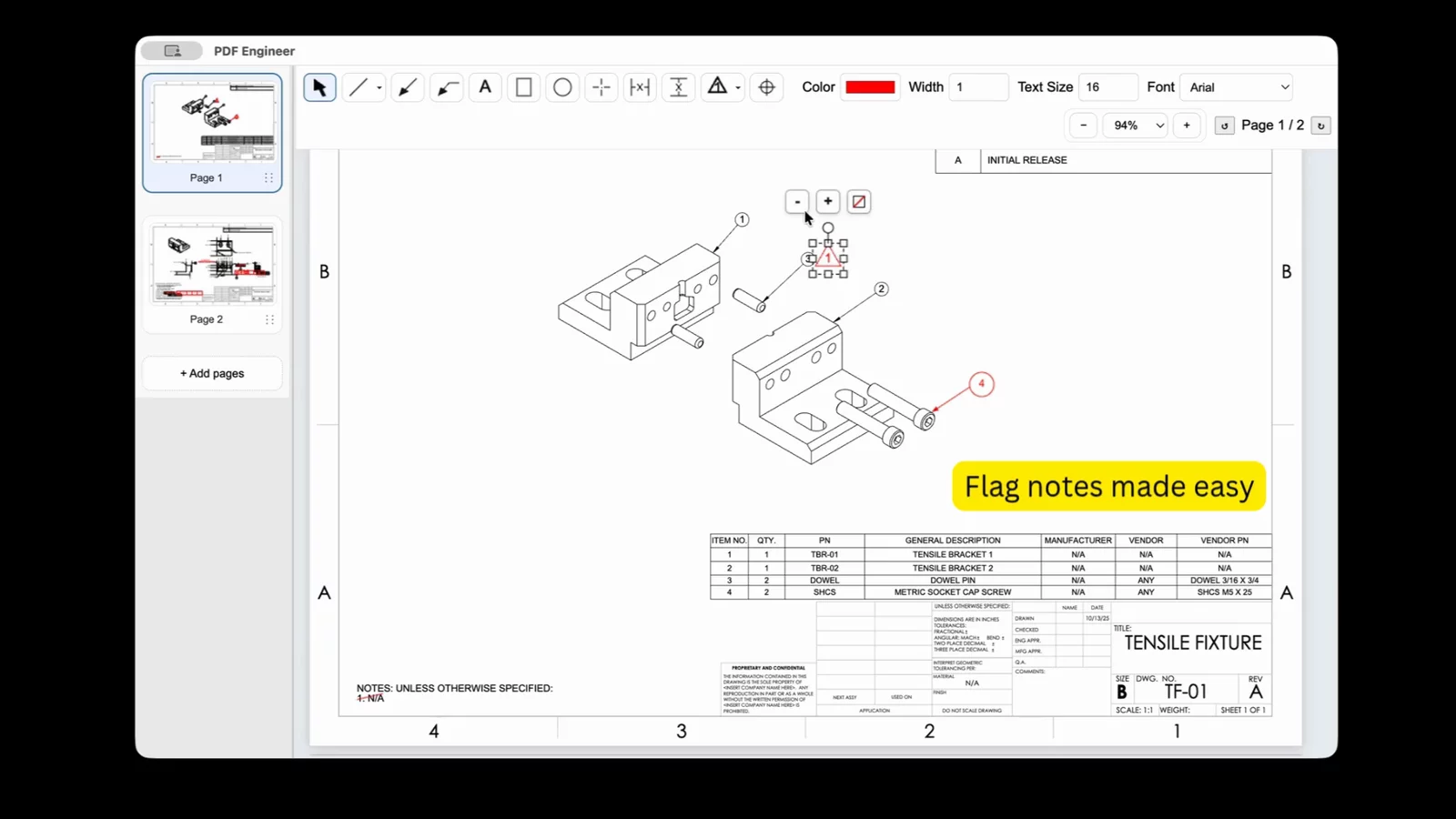
Step 1
Open the drawing PDF
Start with the mechanical drawing, supplier print, ECO package, or review PDF that needs numbered callouts. PDF Engineer keeps the markup in a standard PDF so the flag note can travel with the rest of the review package.
Flag Note PDF Redline Guide
Create numbered flag note redlines for mechanical drawing reviews without cluttering the print. PDF Engineer helps teams mark drawing notes, dimensions, table rows, and feature-specific issues with compact callouts that stay easy to follow.
Video walkthrough
Watch the workflow for adding a numbered flag note to a mechanical PDF drawing, then follow the written steps below when a review package needs clean callouts and easy issue tracking.
Flag note redline demo
Step-by-step
Use this workflow when a drawing review needs a numbered marker tied to a specific issue, change request, or supporting note.
Start with the mechanical drawing, supplier print, ECO package, or review PDF that needs numbered callouts. PDF Engineer keeps the markup in a standard PDF so the flag note can travel with the rest of the review package.
Choose the flag note tool when a redline needs a compact numbered marker tied to a review comment, drawing note, or change request. This keeps the drawing view clean while still giving reviewers a clear reference point.
Use a number that matches your review sequence, change list, or note reference. Keep each flag distinct so design, quality, manufacturing, and supplier teams can talk about the same issue without confusion.
Click close to the dimension, view, table row, part feature, or general note that needs attention. A flag note works best when the marker is easy to scan and the target area is obvious.
Pair the flag with a short note, leader, or review list item when the drawing needs extra explanation. Use the flag as the anchor and the note text as the action the next reviewer should take.
Save or export the marked-up PDF for the next reviewer, supplier, or document control step. The result is a standard PDF that can be opened outside PDF Engineer.
Click comparison
When the PDF is already open, PDF Engineer keeps a mechanical flag note workflow short. In Adobe Acrobat, teams often have to use a generic stamp or callout workflow, then adjust the marker or note to behave like an engineering flag.
| Task | PDF Engineer | Adobe Acrobat |
|---|---|---|
| Add one numbered flag note | 2 clicksSelect Flag Note, then click the drawing to place it. | 6+ clicksOpen the stamp or callout tools, choose a marker style, place it, and adjust the note. |
| Add another flag note after the tool is active | 1 clickClick the next location and keep moving through the review. | 4+ clicksReuse or reselect the generic markup, place it, and edit the label or note as needed. |
| Keep the markup tied to a mechanical drawing review | Built inFlag notes live alongside leaders, GD&T frames, BOM balloons, and other drawing redline tools. | Manual setupGeneric PDF comments can work, but the engineering convention has to be assembled by the reviewer. |
Click counts are based on a typical workflow after the PDF is open. Acrobat counts use documented stamp or callout tools as a flag-note workaround and can vary by toolbar setup, favorites, and saved custom stamps.
Why it matters
A flag note gives every review item a visible anchor on the drawing. Instead of burying feedback in a long comment thread, the marker stays near the relevant feature while the supporting note explains the action.
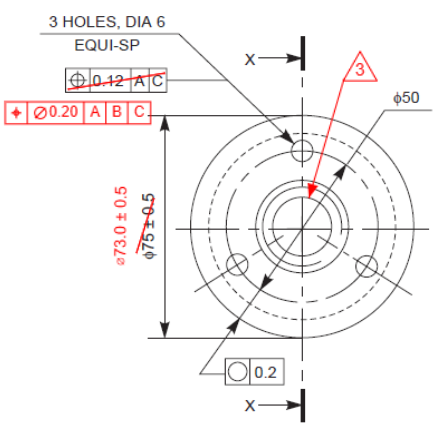
Use cases
Flag notes are useful when a review package needs visible markers without covering the drawing with long notes.
Number each redline so reviewers can walk through open items in a clean sequence.
Anchor comments to a specific general note, revision table item, or drawing requirement.
Mark questions from inspection, manufacturing, or vendors without covering the drawing geometry.

PDF workflow
PDF Engineer is designed for drawing reviews that need to move quickly. Add flag notes, combine the PDF with the rest of the package when needed, and export a standard file for the next reviewer, supplier, or document control step.
Download PDF EngineerFAQ
A flag note is a compact numbered or labeled marker used to point reviewers to a specific drawing issue, note, feature, or requested change. It keeps the drawing readable while preserving a clear reference point.
Yes. PDF Engineer is built for mechanical drawing redlines, including flag notes, leaders, callouts, GD&T frames, BOM balloons, and other annotation tools used in engineering PDF reviews.
Usually no. Use the flag note as the marker on the drawing, then add a short note or review-list reference when the requested action needs more detail.
Yes. PDF Engineer exports a standard marked-up PDF, so suppliers, teammates, document control, and quality reviewers can open it in their normal PDF workflow.