Software comparison · Mechanical drawing reviews
Drawboard PDF vs PDF Engineer: Pen Markup or Mechanical Callouts?
Choose Drawboard PDF when writing and sketching directly on PDFs is central to your review. Choose PDF Engineer when you repeatedly need structured GD&T frames, assembly balloons, and flag notes.
Updated October 9, 2026 · Written by PDF Engineer
This comparison is published by PDF Engineer. Competitor details come from official vendor pages; recommendations reflect workflow fit, not a hands-on performance benchmark.
Where each tool fits
PDF Engineer
Mechanical drawing redlines with GD&T feature control frames, BOM balloons, flag notes, weld symbols, and leaders.
Drawboard PDF
Pen and touch annotations, with optional shared PDF workflows.
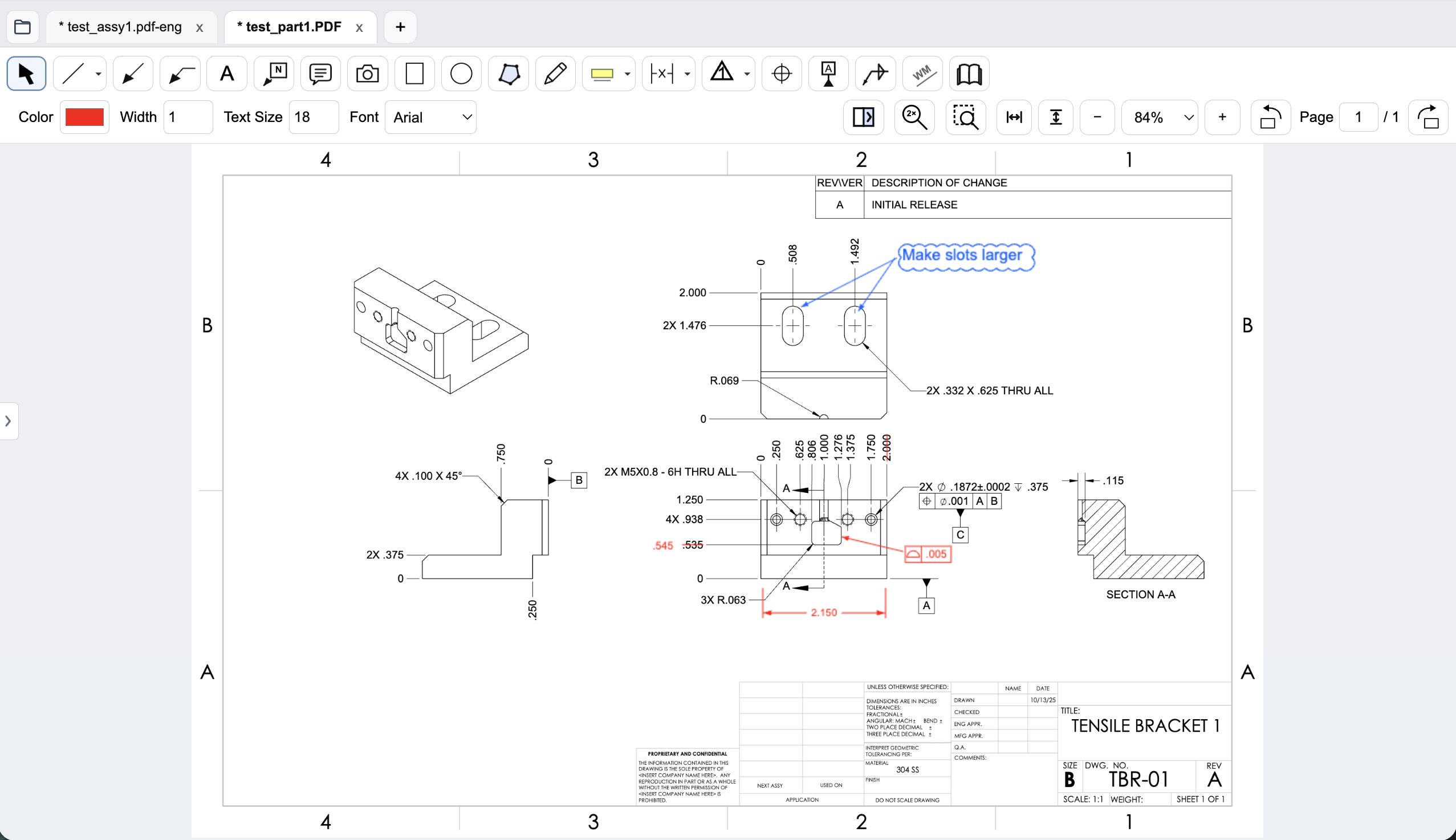
Workflow comparison
| Task | Drawboard PDF | PDF Engineer |
|---|---|---|
| Freehand review | Pen and touch markup; Pro advertises pressure-sensitive ink. | Mechanical annotations, leaders, and freehand drawing alongside structured callouts. |
| GD&T, BOM balloons, flag notes | General ink, shapes, images, and callouts; test your symbol construction or image workflow. | Native GD&T feature control frames, datum callouts, BOM balloons, flag notes, weld symbols, and leaders. |
| Measurement | Pro advertises length, angle, and area tools; check the selected tier. | Proposed drawing changes and engineering callouts; evaluate takeoff needs separately. |
| Sharing and processing | Store+Share uploads PDFs for shared markup. Most Pro tools do not require a cloud account in Windows and iOS apps, per the pricing FAQ. | Rendering, markup, review, and export run locally. Internet services handle accounts, subscriptions, updates, and support. |
A general editor can support custom or pasted mechanical marks. We do not treat an unlisted vendor feature as proof that a workflow is impossible.
Sketching a concern and specifying a correction are different tasks
During a design discussion, a quick sketch can explain tool access, assembly direction, or a likely interference. Drawboard's pen-oriented approach is a sensible fit for that kind of visual conversation. A team comfortable with a tablet may prefer handwriting to typing a long comment.
For a supplier clarification, the output may need a precise datum reference, a structured tolerance proposal, and a balloon tied to the BOM. PDF Engineer supplies native tools for those marks. Try both a freehand concept sketch and a formal drawing clarification; one task alone will not represent the whole review.
The free plan is a real option for simpler feedback
Drawboard lists free essential annotation tools. If your reviewers only need notes, highlights, arrows, and occasional shapes, begin there. Buying a specialized tool should solve a recurring difficulty rather than duplicate annotations that already work.
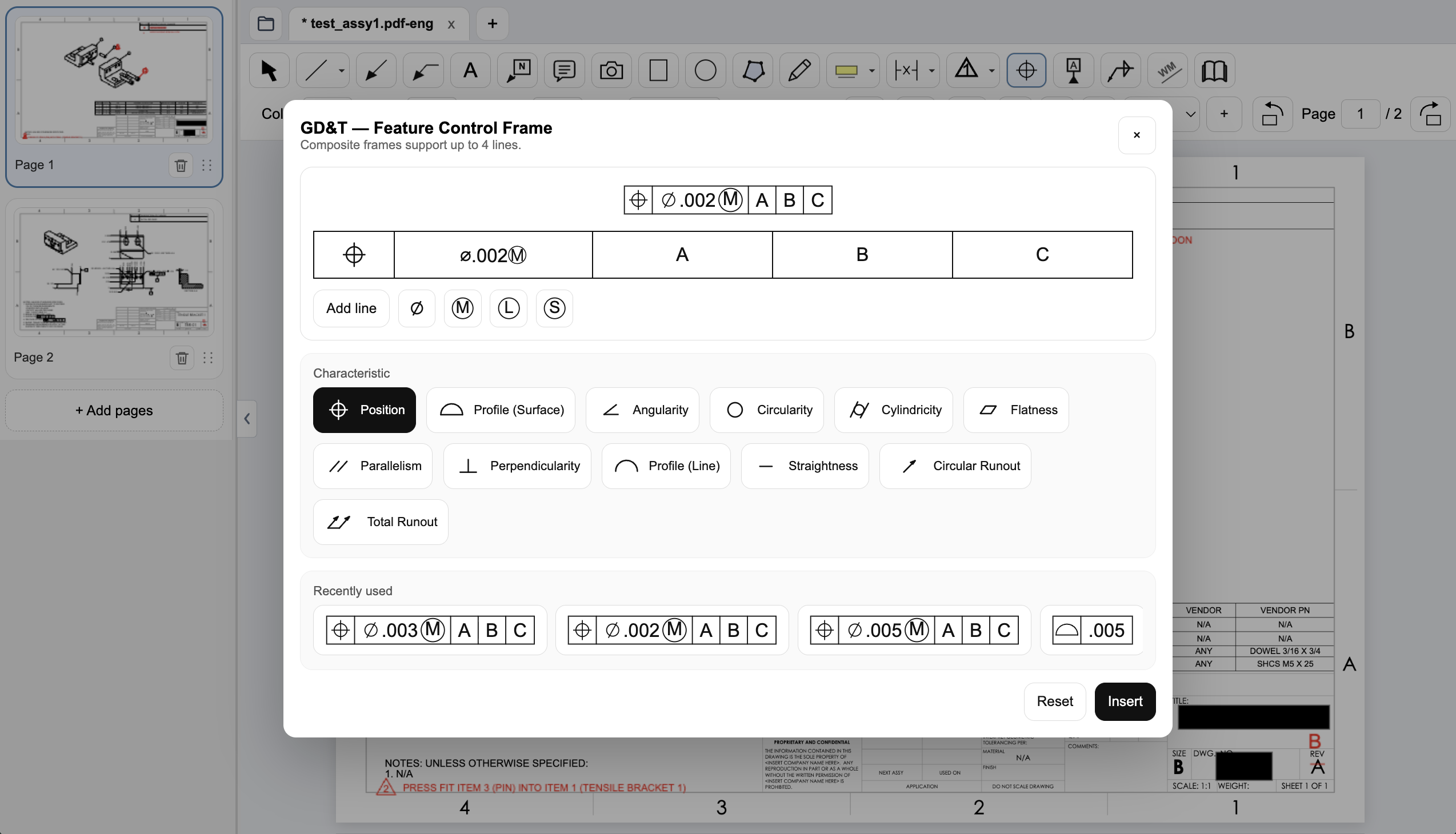
A useful test is to update an existing position frame without redrawing it as loose ink. Compare the steps required to change its tolerance or datum sequence, then check the PDF at normal viewing size. The engineering proposal must remain legible when the recipient does not see the reviewer's gestures or hear the accompanying discussion.
Choose the document path deliberately
Drawboard offers desktop apps and online sharing. Store+Share is an upload-and-collaborate workflow; it should not be conflated with every local annotation action. Its pricing FAQ says most Pro tools can be subscribed to in Windows and iOS without a cloud account, apart from Store+Share.
PDF Engineer keeps rendering and markup on the workstation and exports the review for your existing handoff process. Choose cloud sharing when it meets your team's access requirements, or keep the review local when that is the approved process. Neither choice alone establishes compliance with a particular contract.
Create a native GD&T feature control frame
Choose the geometric characteristic, enter the tolerance and modifiers, and set the datum references in PDF Engineer’s frame editor. The preview shows the frame before insertion, and recently used frames are available for reuse.
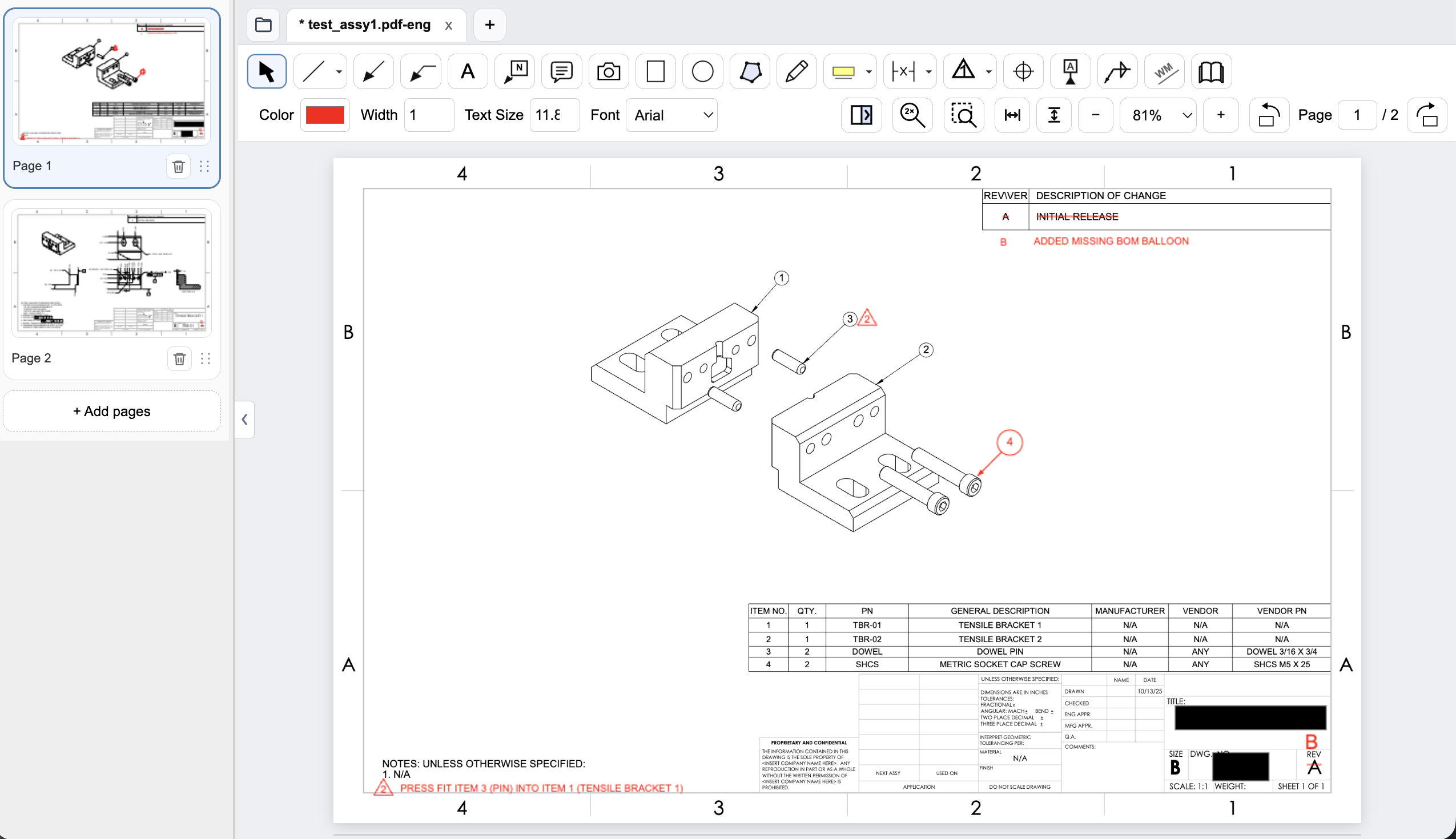
Connect assembly feedback to BOM items and notes
Place an item balloon at the component that needs attention and use a flag note to connect an assembly requirement to the drawing. In this example, the redline adds the missing item 4 balloon and flags a press-fit note for the dowel pin.
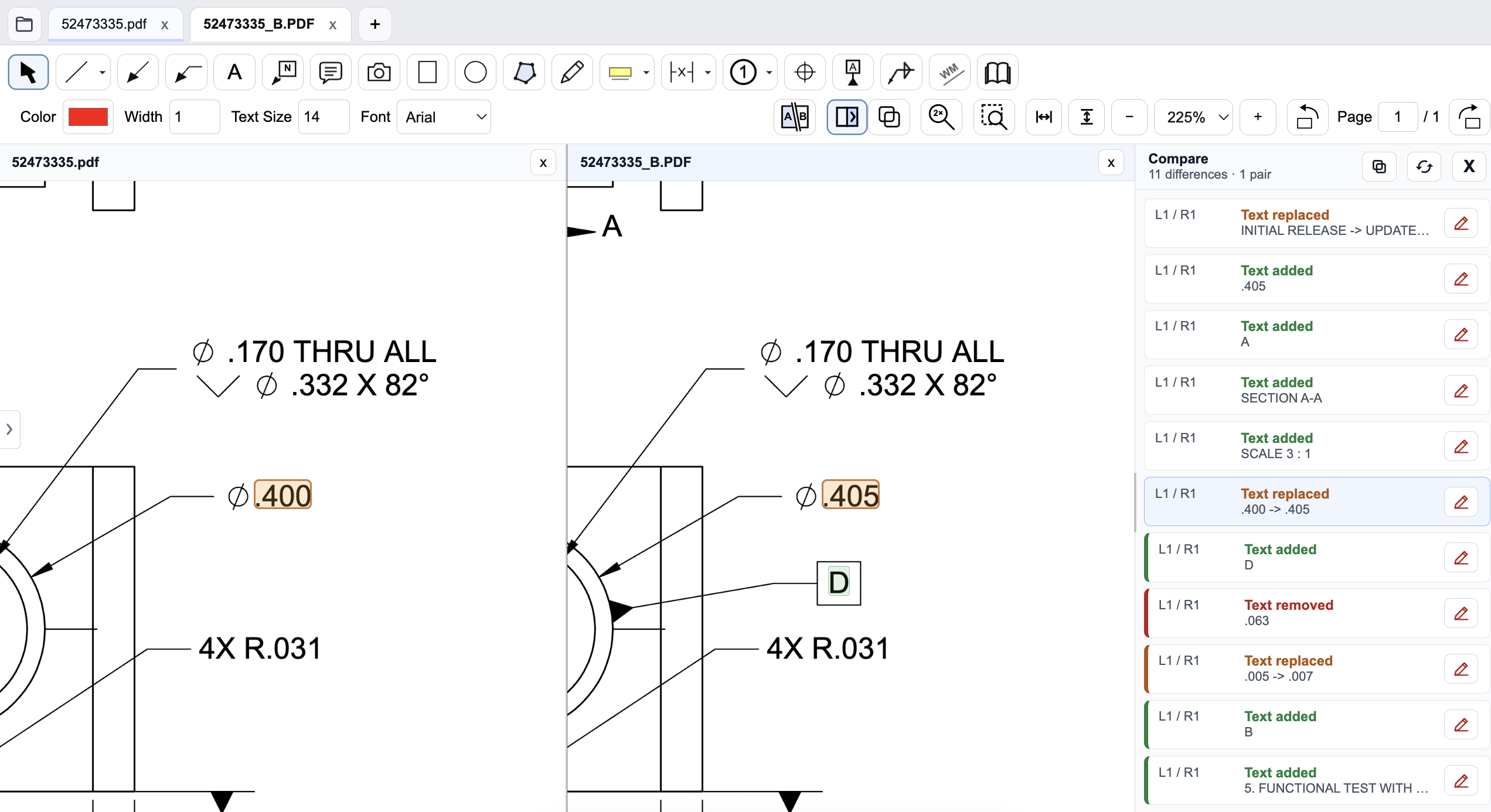
Review a drawing revision in PDF Engineer
Compare the old and new drawings side by side and inspect highlighted changes. The difference list identifies added, removed, and replaced text, helping reviewers find changed dimensions and notes. Review geometry and engineering intent as well; a text-difference list does not complete the drawing review.
Pricing and billing terms
US dollar prices checked October 9, 2026. Per-user list prices; taxes, promotions, and negotiated discounts can change the total.
| Plan | Price | Billing basis |
|---|---|---|
| Drawboard PDF essentials | Free | Essential annotation tools; storage and feature limits apply |
| Drawboard PDF Pro | Verify in app | Monthly or yearly subscriptions; paid amounts were not reliably exposed in the reviewed pricing page |
| PDF Engineer Professional | $300/year | $25/month equivalent, billed annually. $29/month with monthly billing. |
Drawboard's pricing page mixes PDF and Projects offerings. Compare PDF plans for this article. Education offers have eligibility rules and are not general business prices. Confirm the selected platform, billing period, and Pro tier in the app before purchasing.
When to choose Drawboard PDF
Choose Drawboard for pen-led reviews, cross-device annotation, or its shared PDF workflow when approved. Its free essentials may be sufficient for basic feedback.
Test the decision on a real drawing
Review a drawing on the input device you actually use. Sketch an access concern, place a GD&T proposal, and flag an assembly instruction. Check the exported result with a supplier who was not present during the review.
Record the steps required, time spent, readability of the exported marks, and how easily another reviewer understands the request. Keep the same drawing and review tasks for both tools. Save the editable PDF Engineer project before exporting the standard PDF for handoff.
Download PDF Engineer